.png?width=200&height=90&name=logo-edist%20(1).png)
This guide covers firmware updates for Supported SpeechMikes:LFH3200, LFH3300, LFH3500, LFH3600, SMP3700, SMP3800 and SMP4000 series
And also covers - Supported foot controls:ACC2300 and LFH2300 series
1) Connect Your Device
Plug your Philips device (like a SpeechMike or Foot Control) into your computer via USB.
2) Launch the Control Center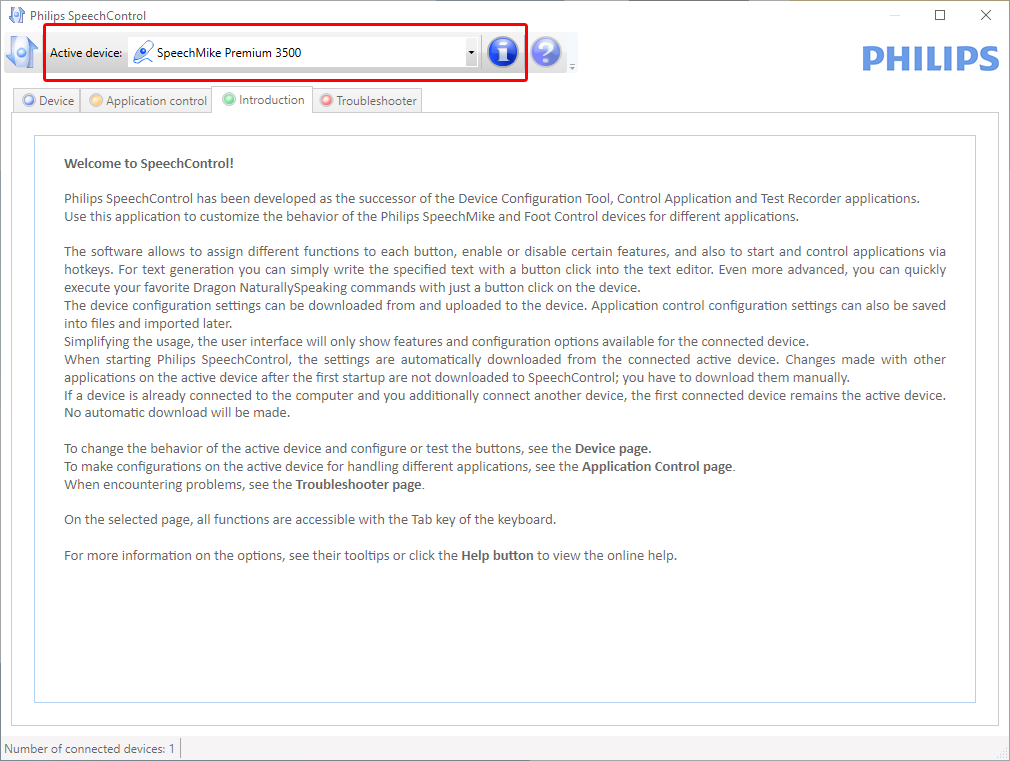
3) Your device should appear and be selectable on the drop-down bar towards the top.
You can check the firmware version by selecting the "I" icon example, below:

4) Check for Firmware Updates
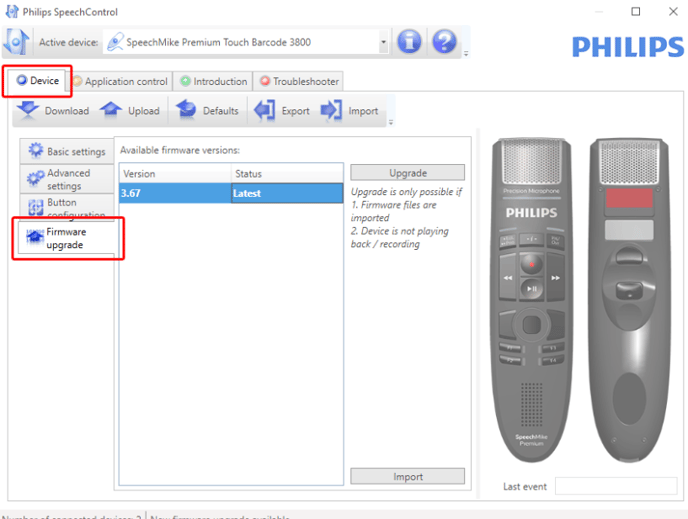
- In the Control Center, go to the Device tab
- Click Firmware Upgrade
- If a new version is available, it will appear in the list of available firmware
5) Download and Install
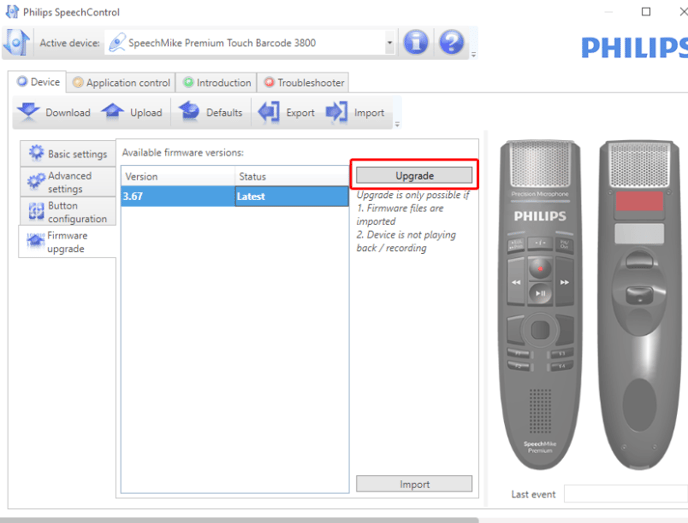
-Select the desired firmware version
- Click Upgrade
- Confirm with Yes, upgrade the device
- Wait for the process to complete—don’t disconnect the device during the update
6) During the upgrade, you'll see a box displaying:
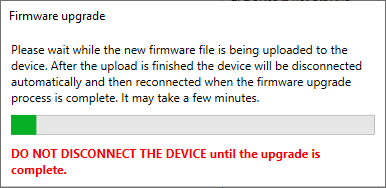
6) Once completed, the box will disappear, and it will be ready for usage.