.png?width=200&height=90&name=logo-edist%20(1).png)
There are 2 steps required to enable a user access to CNEX.
Enabling users for CNEX in the Dragon Admin Center
-
Navigate to your Dragon Admin Center
-
On the left, click on <Clinical app connector>
- Click on: <App user IDs>
- Click on: <+ Add app user ID>
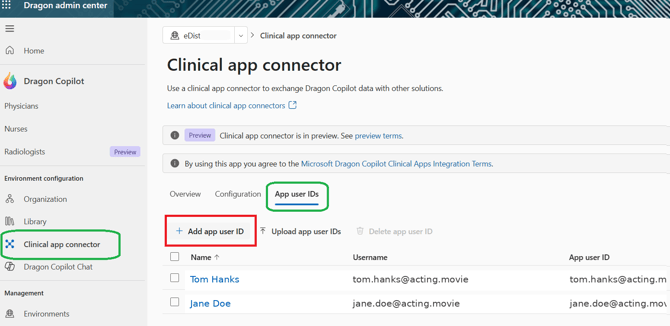
- Search for and add your user.
- Copy over the user's login email over to the App user ID section and <Save>.
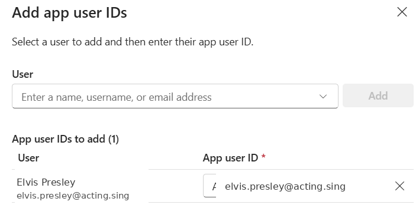
- Copy over the user's login email over to the App user ID section and <Save>.
Adding user's to the CNEX Portal:
-
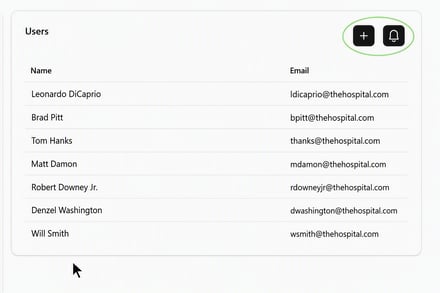
Customer's will log into their CNEX portal and add users under the "users" section.
-
Add Users manually through + icon or via Entra mapping via Blue icon
-
-
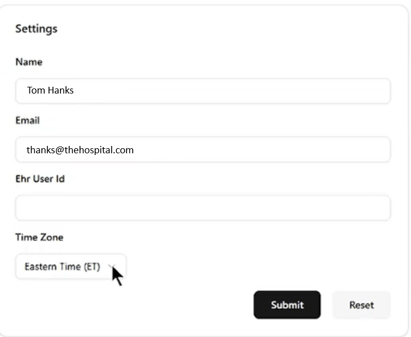
After users have been added. Click each user to edit their settings.
- The email should match their Dragon Copilot Login email.
- Enter their EHR user ID in <EHR user ID> field.