.png?width=200&height=90&name=logo-edist%20(1).png)
This applies only to DAX Copilot purchased through Dictation.Cloud or eDist; customers who purchased through another distributor should refer to their installation guide.
A DAX Copilot License is also required to use DAX Copilot!
-
Locate and open your Dragon's <SoD.exe.config> file.
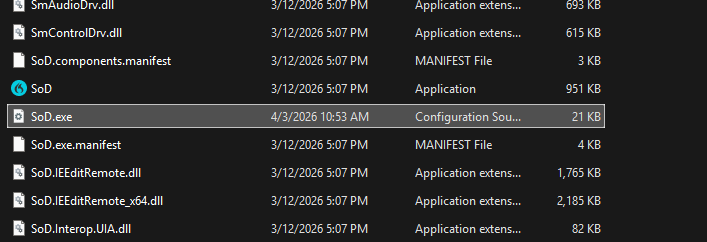
- Locate and navigate to the Authentication section:
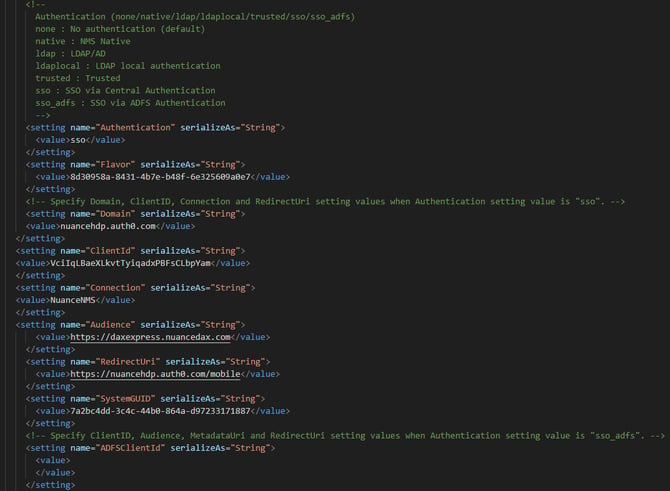
- You will need to update and change the values exactly as seen below:
Click here for a downloadable text version!
<setting name="Authentication" serializeAs="String">
<value>sso</value>
</setting>
<setting name="Flavor" serializeAs="String">
<value>8d30958a-8431-4b7e-b48f-6e325609a0e7</value>
</setting>
<!-- Specify Domain, ClientID, Connection and RedirectUri setting values when Authentication setting value is "sso". -->
<setting name="Domain" serializeAs="String">
<value>nuancehdp.auth0.com</value>
</setting>
<setting name="ClientId" serializeAs="String">
<value>VciIqLBaeXLkvtTyiqadxPBFsCLbpYam</value>
</setting>
<setting name="Connection" serializeAs="String">
<value>NuanceNMS</value>
</setting>
<setting name="Audience" serializeAs="String">
<value>https://daxexpress.nuancedax.com</value>
</setting>
<setting name="RedirectUri" serializeAs="String">
<value>https://nuancehdp.auth0.com/mobile</value>
</setting>
<setting name="SystemGUID" serializeAs="String">
<value>7a2bc4dd-3c4c-44b0-864a-d
</value>
</setting>
4.
- Don't forget to save!