.png?width=200&height=90&name=logo-edist%20(1).png)
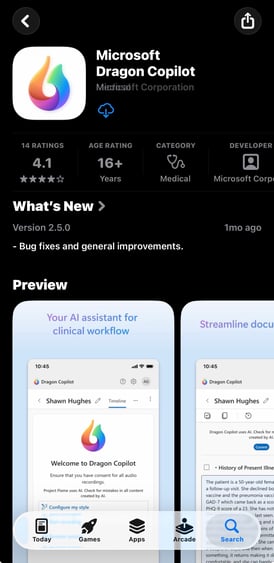
1. On your mobile device open either the IOS app store or if on Andriod open the Google Playstore.
Because I previously installed the app, it now displays a cloud download icon. For a first-time installation, it will appear as a “Get” button instead.
2. Once fully downloaded, you can select Get Started, and login using your creditals.
Depending on your security preferences and your organization’s policies, you may be prompted to use the Microsoft Authenticator app to verify your identity.
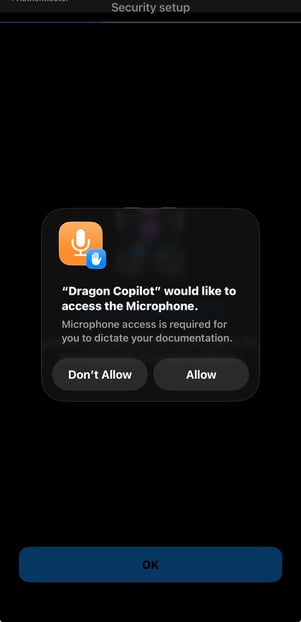
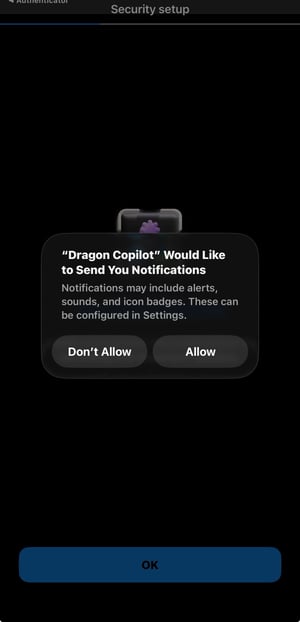
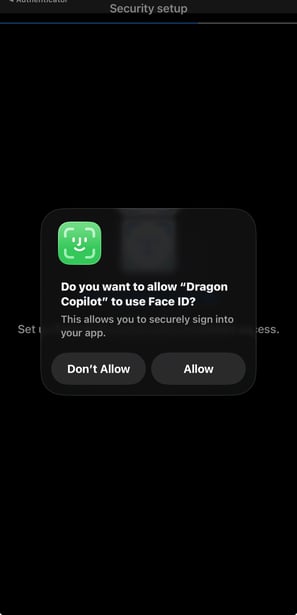
3. Once you have been authenticated, you will be presented with several security options. Select “Allow” for all prompts. You will then be asked to enable biometric authentication, such as Face ID or fingerprint recognition.
4. In the top-right corner, select the microphone icon. A prompt will appear asking you to connect the Mobile Mic.
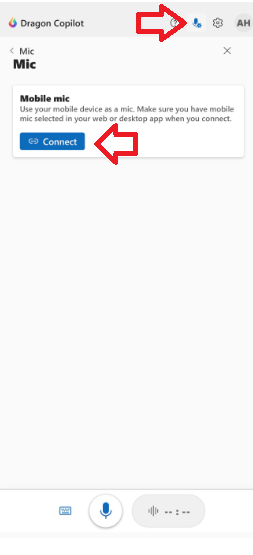
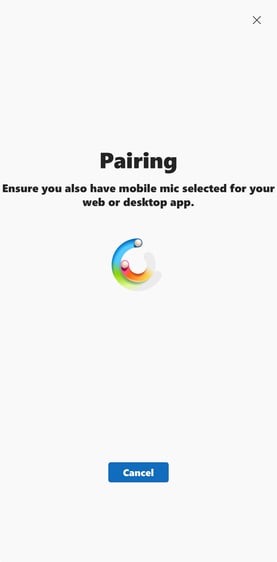
5. Once you press connect, you will be granted the message below:
6. On the desktop app please ensure you have clicked on the icon on the top right and select moblie mic:
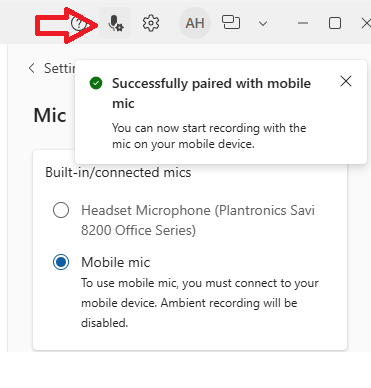
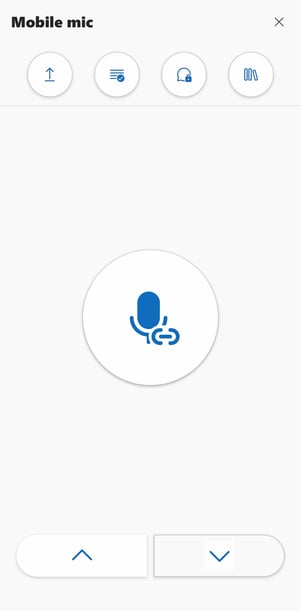
7. If the steps have been completed correctly you'll have your phone appear as the following: