.png?width=200&height=90&name=logo-edist%20(1).png)
Users will have to have their licenses provisioned first in order to log into Dragon Copilot.
For steps on how to provision licenses in the Partner Center: Check out this article!
Step 1: Log into the Microsoft 365 Admin Center.
https://admin.healthplatform.microsoft.com
Step 2: Setting up your Environment.
-
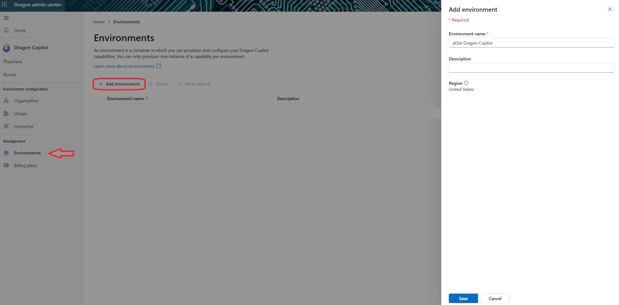
Select <Environments> on the left panel
-
Use the <+ Add environment> option to create a new environment
- Name your environment and <Save>
- Double-click into the new Environment name.
- Select the <Provision> button to the right.
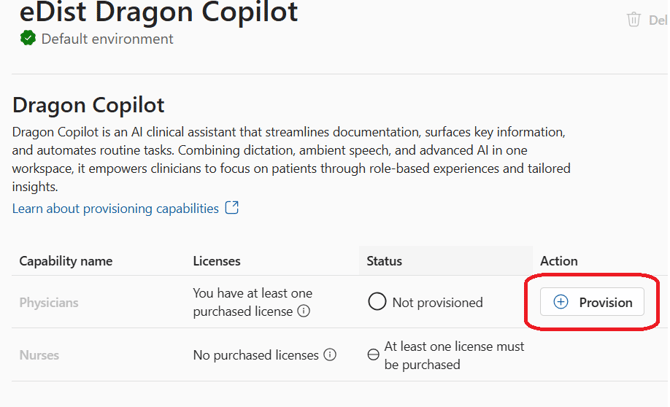
This may take a few minutes, but you will get a confirmation once completed!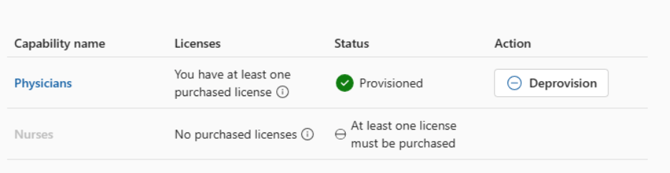
The next step is no longer required to have access to Dragon Copilot.
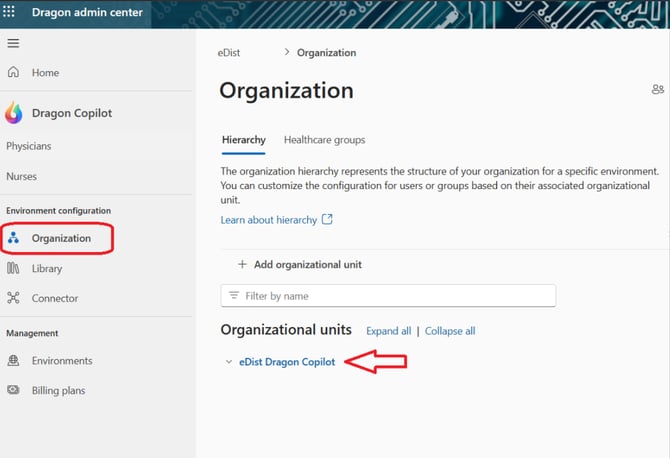
The organization hierarchy represents the structure of your organization for a specific environment.
You can customize the configuration for users or groups based on their associated organizational unit.
Step 3: Adding your members.
-
Select < Organization> on the left panel.
- Double-Click into the Organization unit name
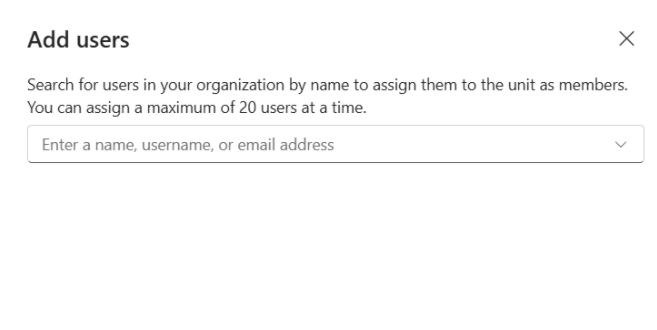
- Use the blue <Add members> button, then select <Add users>
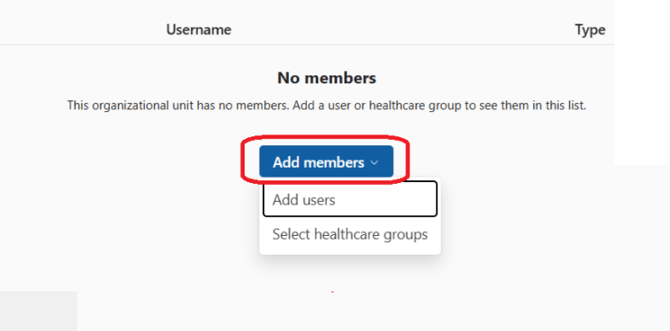
- You will be greeted with a drop-down option to search and add the users you wish to use Dragon Copilot