.png?width=200&height=90&name=logo-edist%20(1).png)
Accessing the payment settings
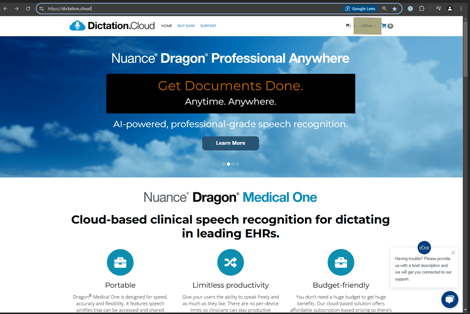
- Sign in at https://dictation.cloud
- In the upper-right corner click ACCOUNT > My Account
Method 1:
To update the payment method under the Manage Payment tab please follow the steps outlined below:
- From My Account select <Manage Payments>
Choose a payment type from the dropdown (Credit Cards, Bank Accounts, ACH Credit Transfer / Virtual Bank)
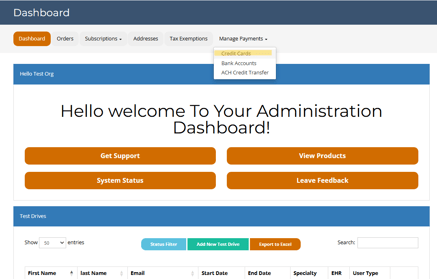
Credit Cards
This page allows you to replace or update your card and all associated orders.
If you wish to replace the payment on a single order, see below for Method 2.
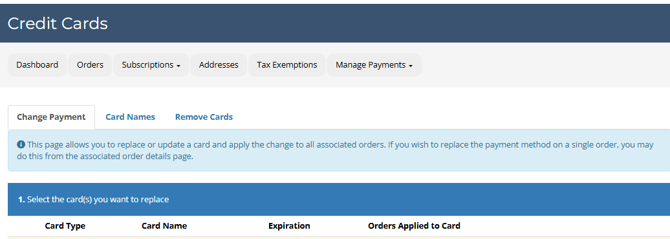
- To move orders from one card to another:
a. Select the orders by clicking the order number.
b. Click Change payment method.
c. Select an existing credit card or add a new payment method.
d. Update the billing address in the billing address area if needed.
e. Click the Confirm Change of Payment Card box to finalize.
Bank Accounts (ACH Withdraw / eCheck):
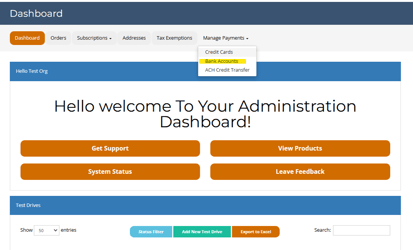
This is where ACH Bank Accounts can be set up as a payment method. The account must be validated before an ACH / eCheck payment can be made.
The following "Note" is displayed as a disclaimer to the customer: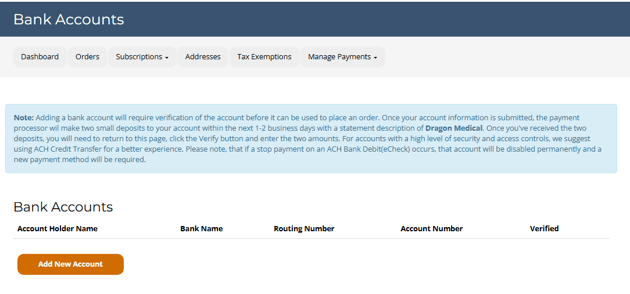
- Click the orange Add New Account button.
- Click the “Add a new bank account” hyperlink.
- Enter Account Type, Name on Account, Bank Routing Number, Bank Account Number.
- Click Submit.
- Note: The account must be validated before an ACH/eCheck payment can be made.
Virtual Bank (Previously ACH Credit)
- Click <Apply for Vitural Bank Account>
- You are provided a personal routing and account number to send funds to.
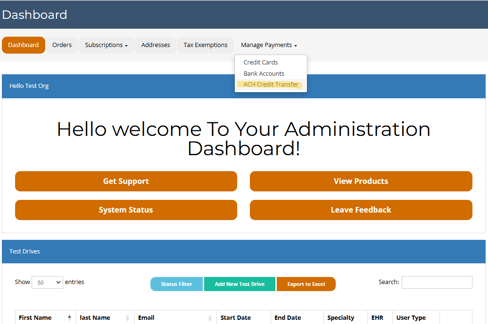
Method 2: Change payment method for a single order.
- From My Account select Orders
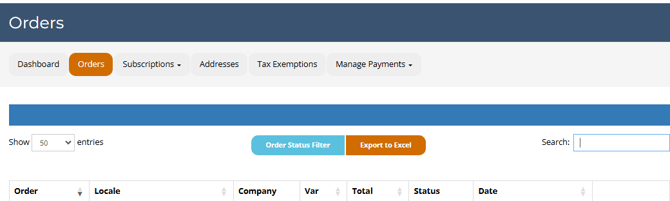
- Search for the order you want to update
- Scroll to the bottom of the order page and click the orange Change payment method
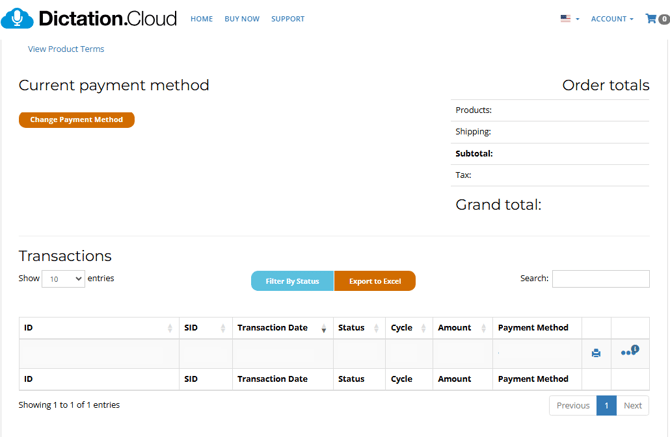
- Verify or enter the billing address for the new payment method and click Next
- Select Bank Account (or other appropriate option) by clicking its circle
- Click Submit Payment Method Change to finalize
- Verify the change by checking Current Payment Method on the order page (it will show the new method, e.g., “eCheck ending in XXXX”)
Tips and troubleshooting
- For new accounts, credit cards can only be added during the check out process for you first order.
- Ensure ACH bank accounts are validated before using them for payments.
- After changing payment on an order, confirm Current Payment Method displays the updated method.