.png?width=200&height=90&name=logo-edist%20(1).png)
The following steps are preformed between the customer and their EHR:
Veradigm API Authorization & Onboarding
-
Customer Receives Approval Email
- Veradigm sends the customer a secure email containing a
link to approve Clinically Speaking's activation of the
Unity API-enabled integration within the customer's
environment.
- Veradigm sends the customer a secure email containing a
- Customer Accepts the Request
- The customer reviews and accepts the authorization
request by clicking the secure link provided in the
Veradigm email.
- The customer reviews and accepts the authorization
- CNEX Configuration Details Delivered
- A member of the Veradigm team sends Clinically Speaking an email containing the information required to complete the CNEX configuration, including the Ubiquity ID, endpoint, and username.
Completing the CNEX Portal Setup:
These are to be preformed with the customer's admin login once the above steps are completed.
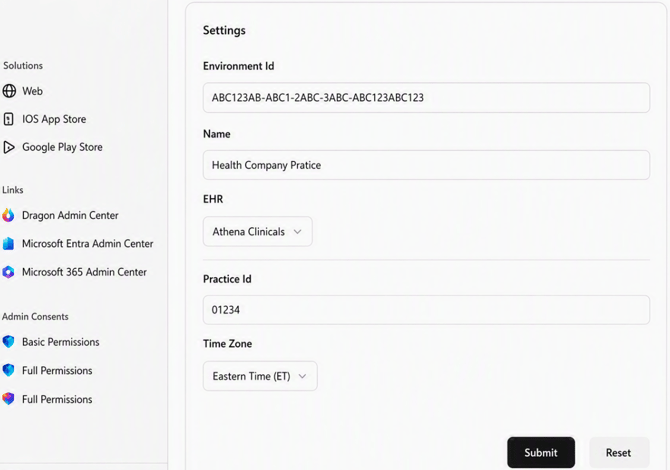
Please note that the settings fields shown in the screenshots are dynamic and may change according to the chosen EHR platform.
Clinical Note Exchange Web App URL:
http://cnex.clinicallyspearking.com/
1) Verify and update any settings info for their EHR.
- Environment Id should match the Dragon Admin Center's environment ID.
- Name should match customer's Microsoft Tenant Organization Name.
- Enter the Authentication URL and Service URL obtained from Veradigm FHIR API console
- Confirm Time Zone
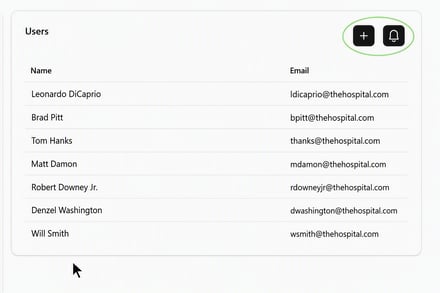
2) On the right, add users who will be using CNEX.
- Add Users manually through + icon or via Entra mapping via Blue icon
You may see a eDist user and email in this section.
This is done by default and does not provide us access to their CNEX portal.
Customer may delete the user entry.
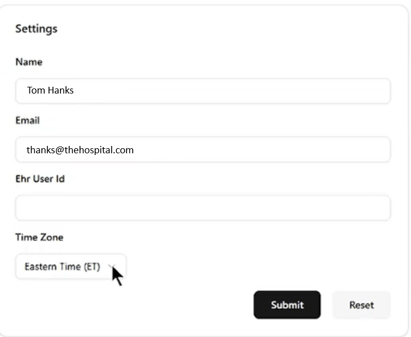
3) After users have been added. Click each user to edit their settings.
- The email should match their Dragon Copilot Login email.
- Enter their Veradigm user ID in <EHR user ID> field.
Note:
You cannot submit without all 3 parameters, or you will receive a Bad Request message.
The page will refresh and lose changes if submit not selected prior to changing screens.